
Before you start
- Admin access to your Shopify store.
- 5 minutes, no developer required.
Iframe installation
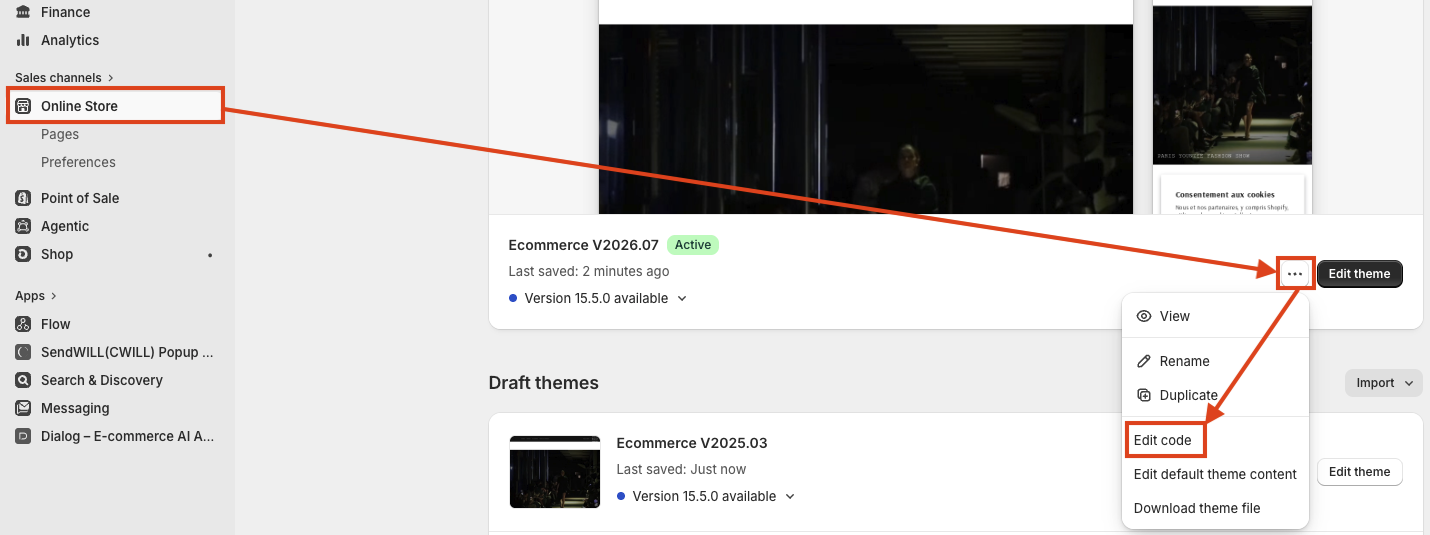
Open your theme code editor
- Log in to your Shopify admin account.
- Go to Online Store → Themes.
- On your active theme, click the three dots → Edit code.
Download the Mirror snippet
Download the ready-to-use mirror-reco.liquid file. It contains everything needed for the integration to work, so do not modify it.
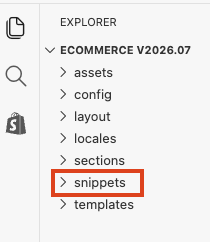
Add the snippet to your theme
In the code editor, open the Snippets folder and add the mirror-reco.liquid file you just downloaded.
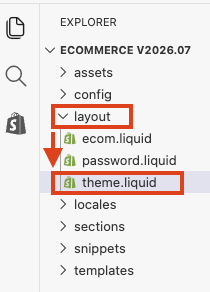
Open theme.liquid in your Layout folder
In the Layout folder, open the theme.liquid file.
Render the snippet before </body>
Just before the closing </body> tag at the bottom of the file, paste the following line:
{% render 'mirror-reco' %}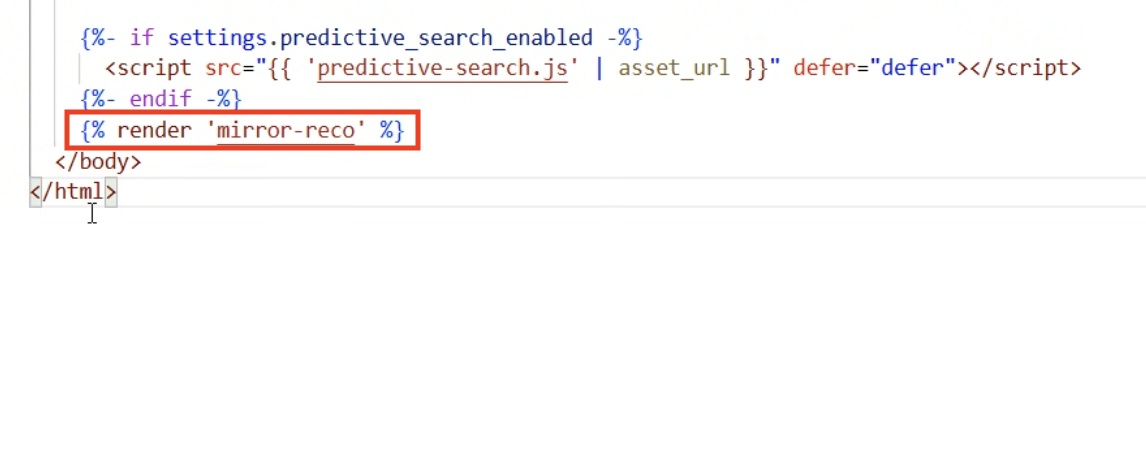
Customize the button label (optional)
Skip this step if the default label works for you. The button that opens Mirror uses Find my size & Try-on out of the box.
To change it, open the mirror-reco.liquid snippet and edit the BUTTON_LABEL constant in the CUSTOMIZATION section (around line 176). Replace the string with your preferred label and save.

Restrict Mirror to specific products (optional)
Skip this step if you want Mirror to be available on every product page. By default, when no mirror-compatible collection exists, the snippet enables Mirror on all products.
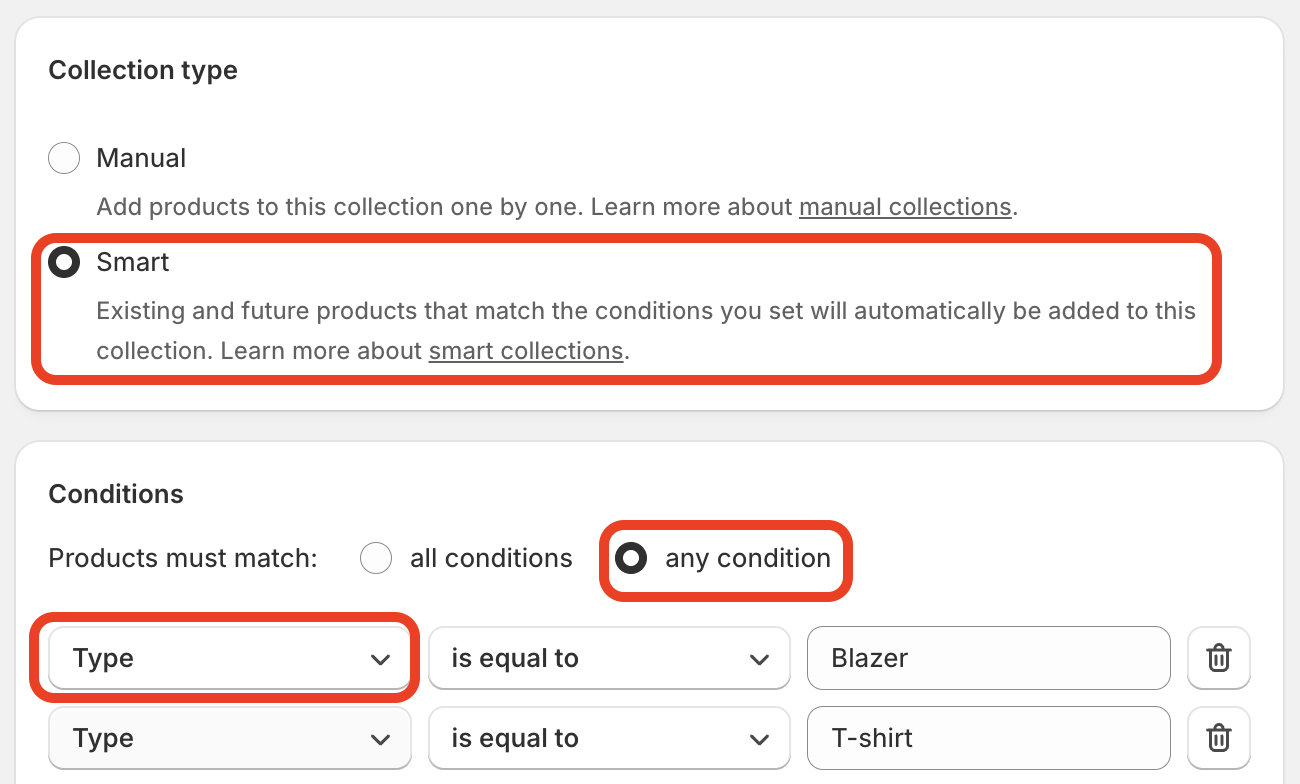
To restrict Mirror to a curated selection, create a collection named exactly mirror-compatible (the handle must match). Only products in this collection will show the Mirror button.
- In Shopify admin, go to Products → Collections and click Add collection.
- Name the collection mirror-compatible.
- Choose Smart as the collection type, set Products must match: any condition, and prefer conditions based on Product type (e.g. Type is equal to Blazer, Type is equal to T-shirt).
- Save. The selected products will automatically be added to the collection and become Mirror-enabled.

Need help?
Reach out to your Mirror contact or open a ticket on your Mirror admin interface.
Next guideConnect your Shopify store
Create a custom Shopify app and share credentials to sync your products with Mirror.
Read guide