
Before you start
- Owner or staff admin access to your Shopify store (required to create custom apps).
- 10 minutes, no developer required.
Custom app setup
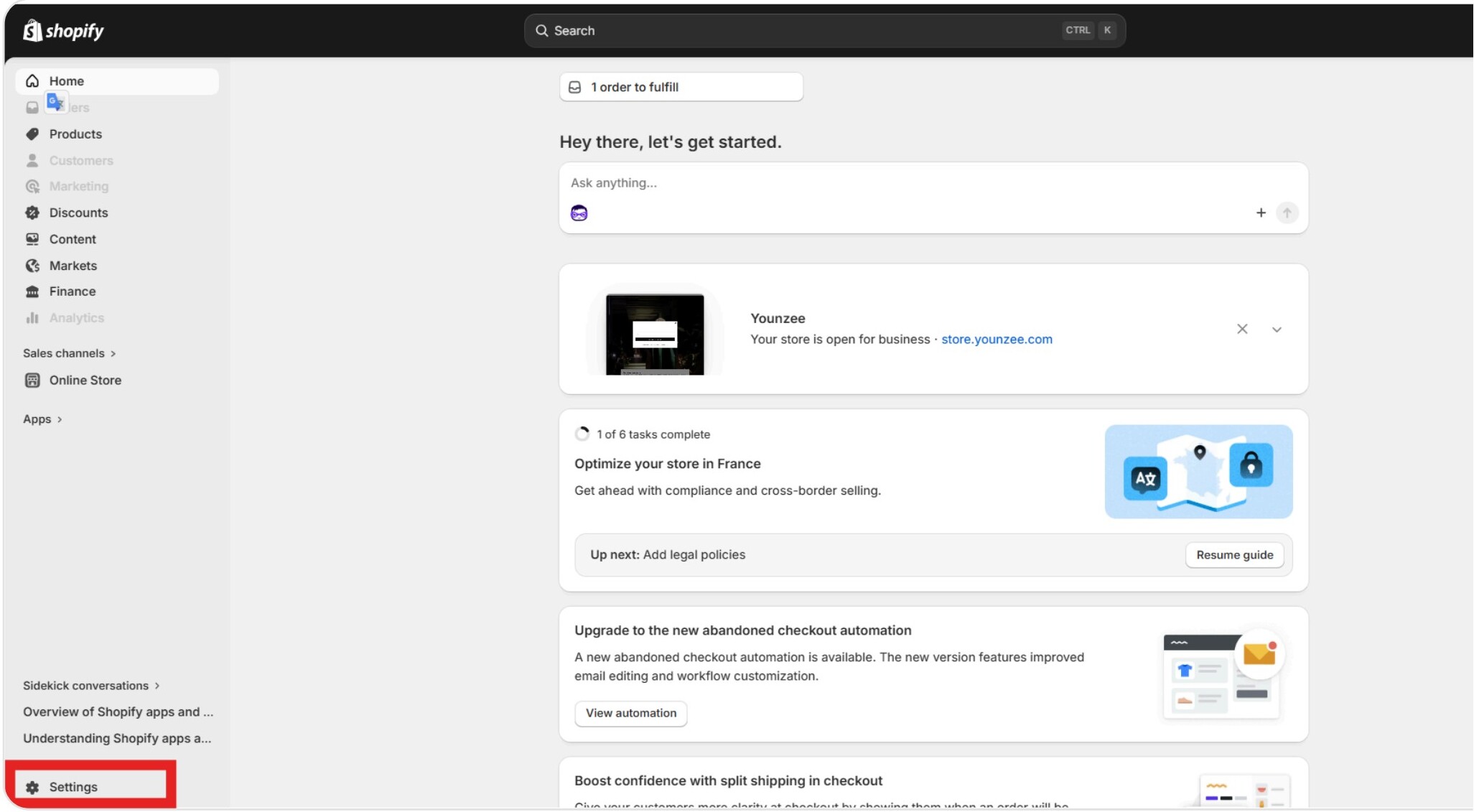
Go to Settings
From your Shopify admin, open the Settings menu.
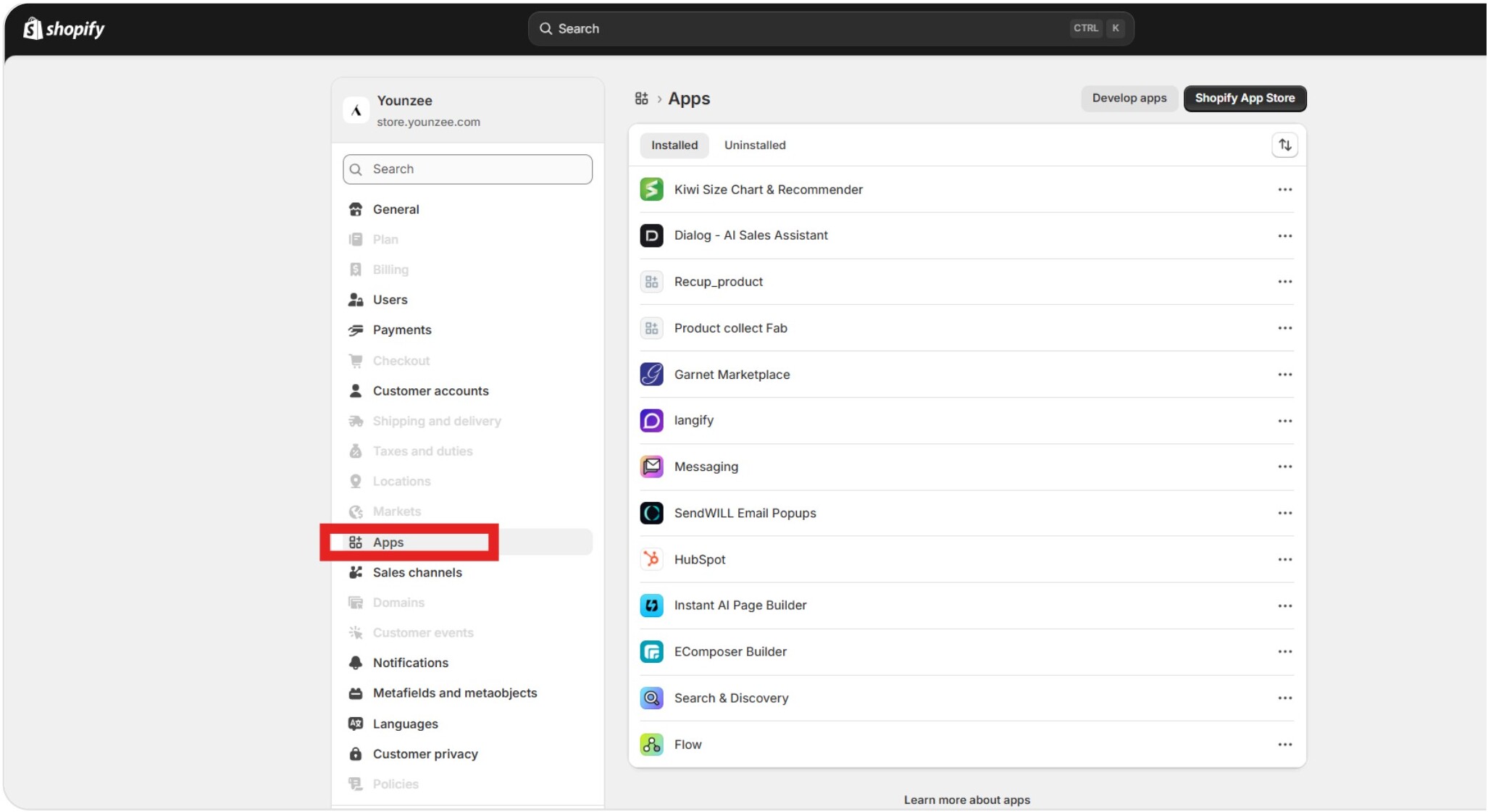
Open the Apps section
In Settings, click on Apps and sales channels.
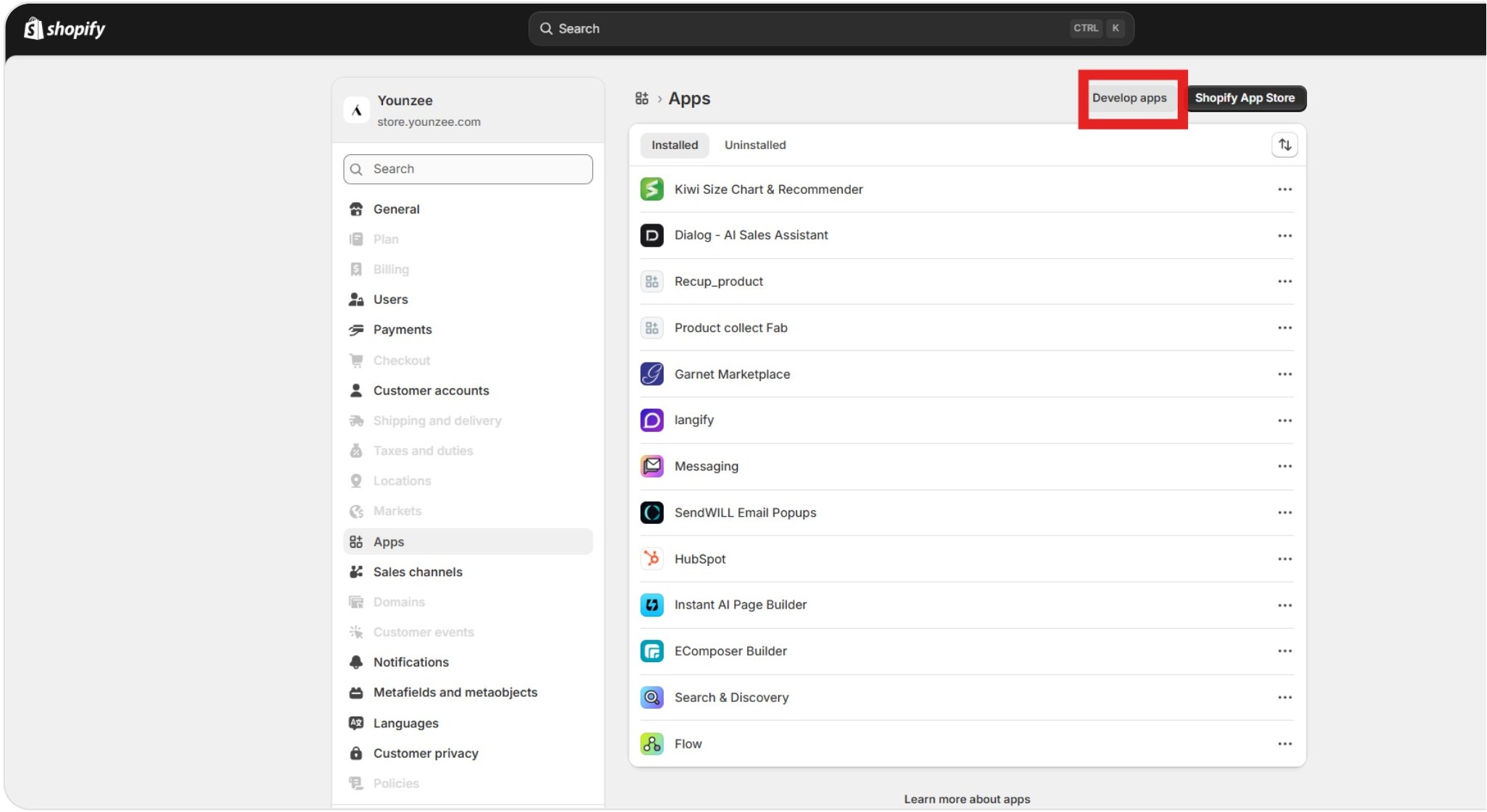
Develop apps
Click on Develop apps.
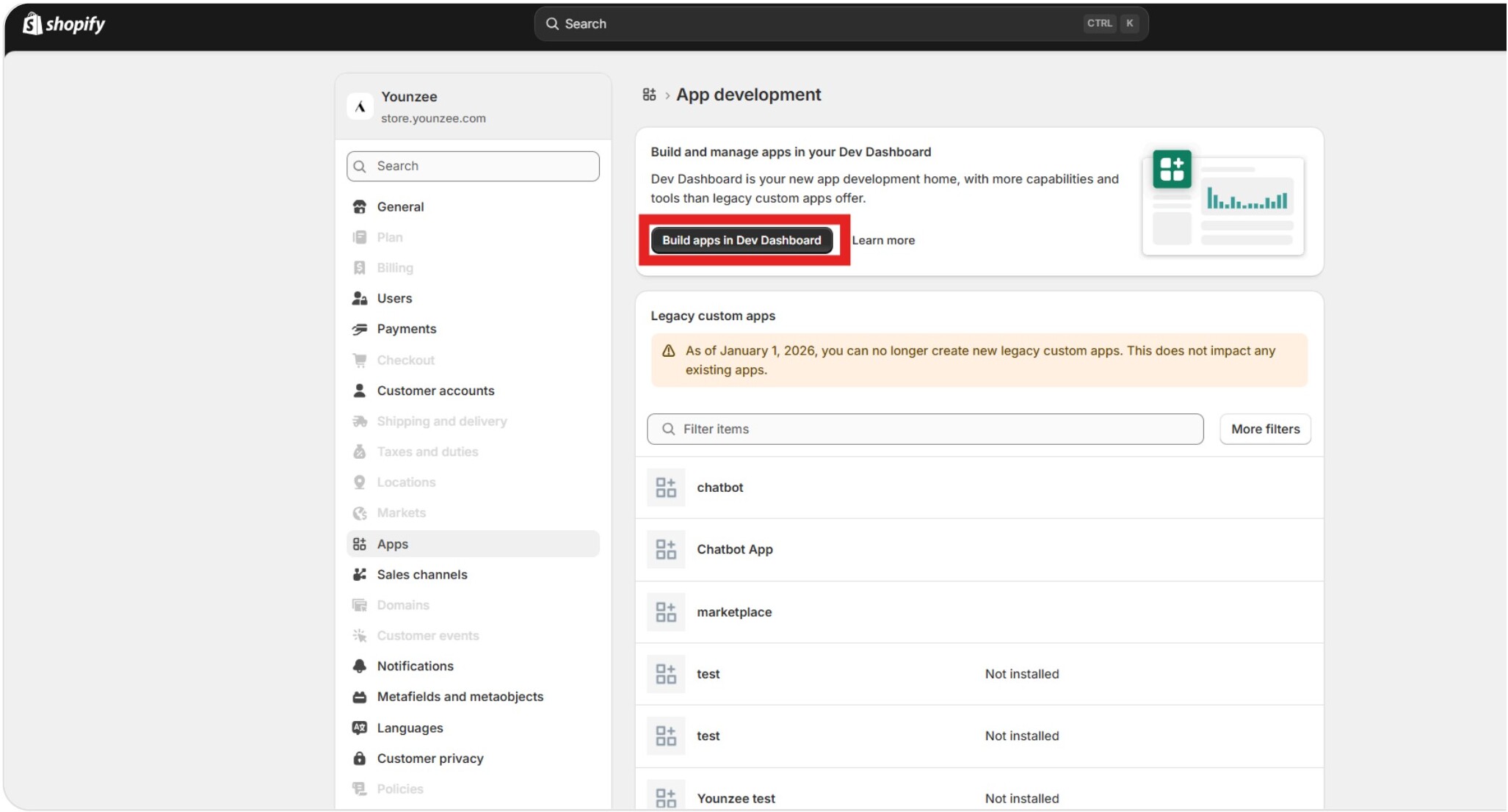
Build in the Dev Dashboard
Choose Build in the Dev Dashboard.
Create an app
From the Dev Dashboard, click Create an app.
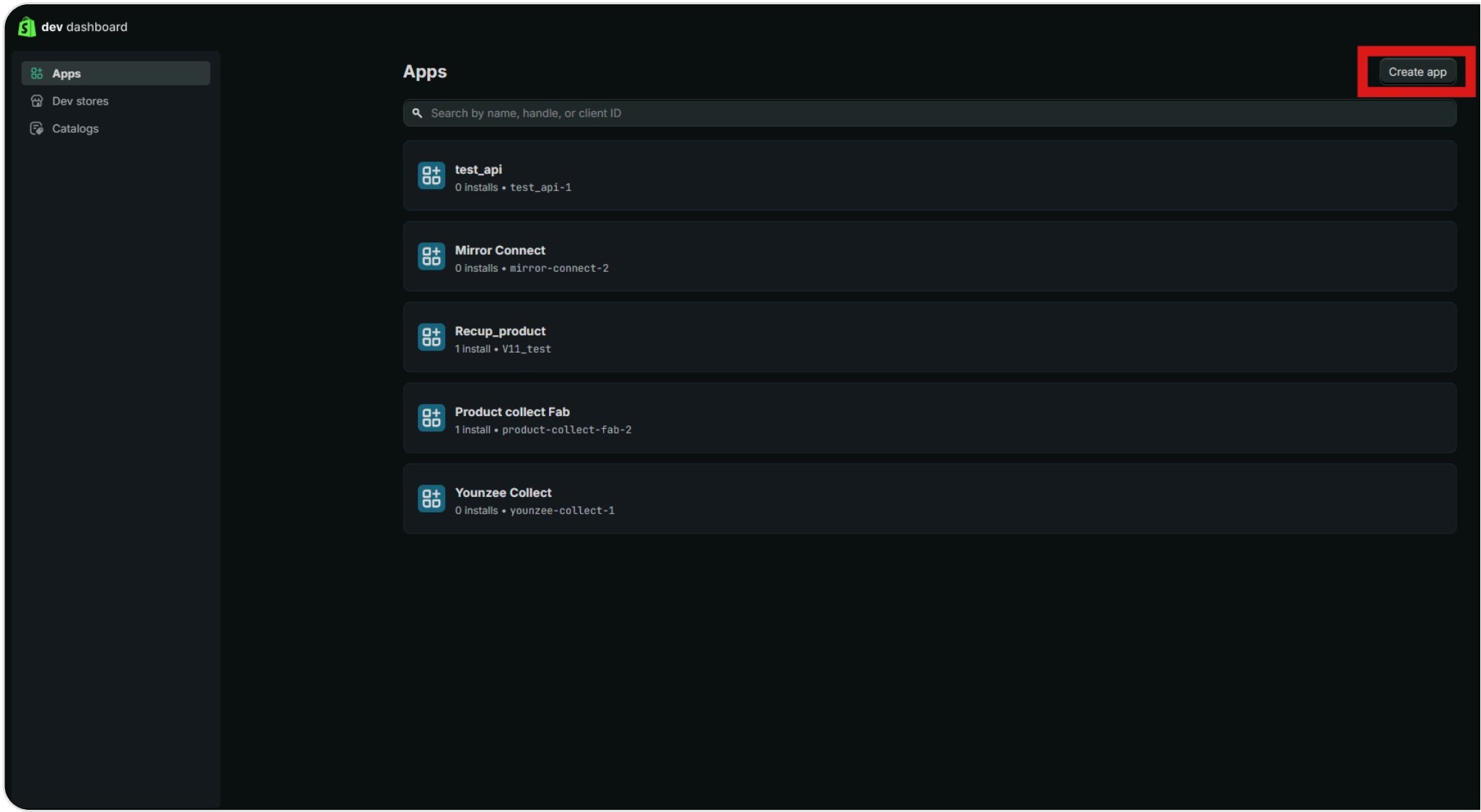
Start from the Dev Dashboard
Select Start from Dev Dashboard (not Shopify CLI).
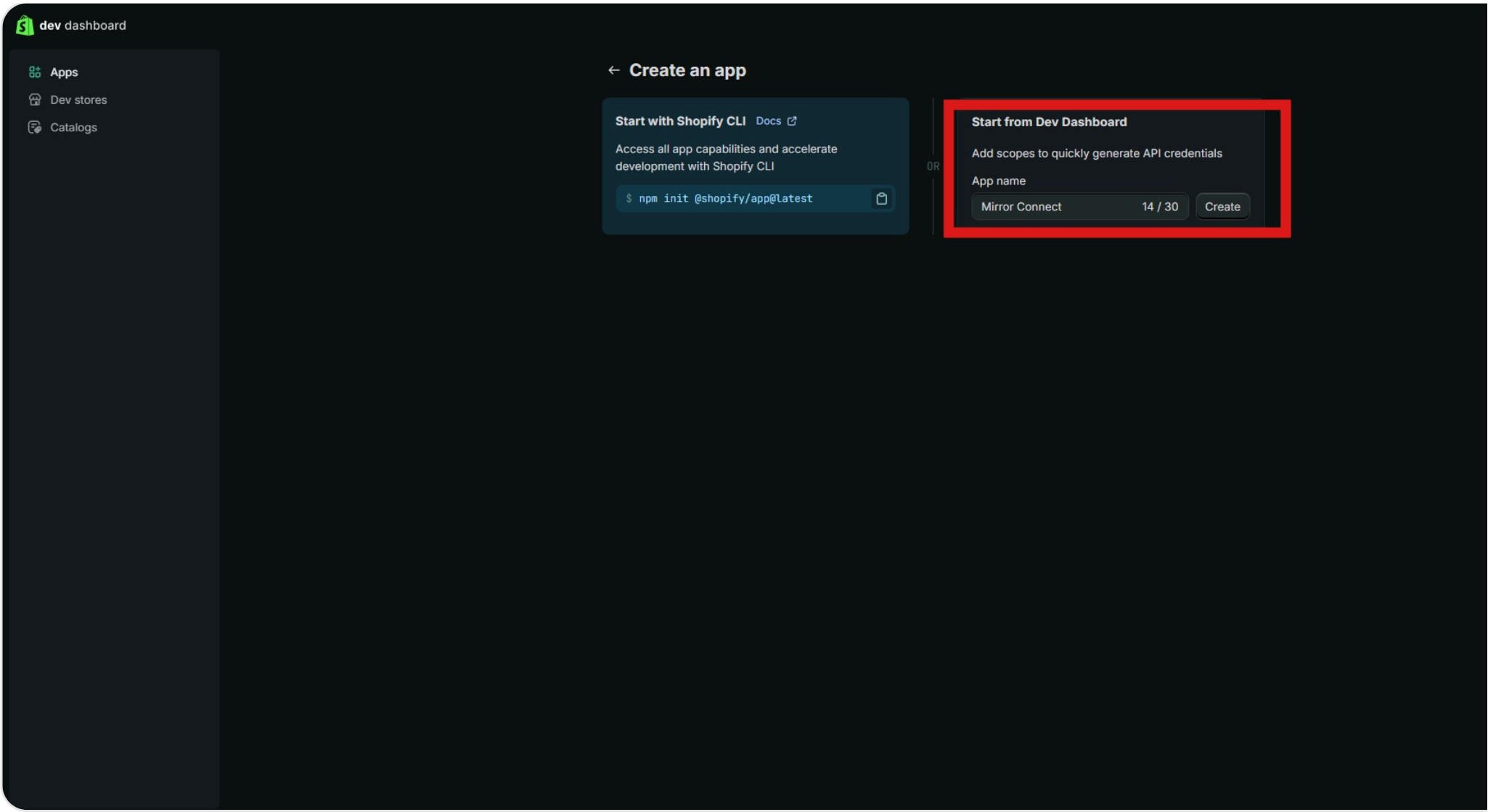
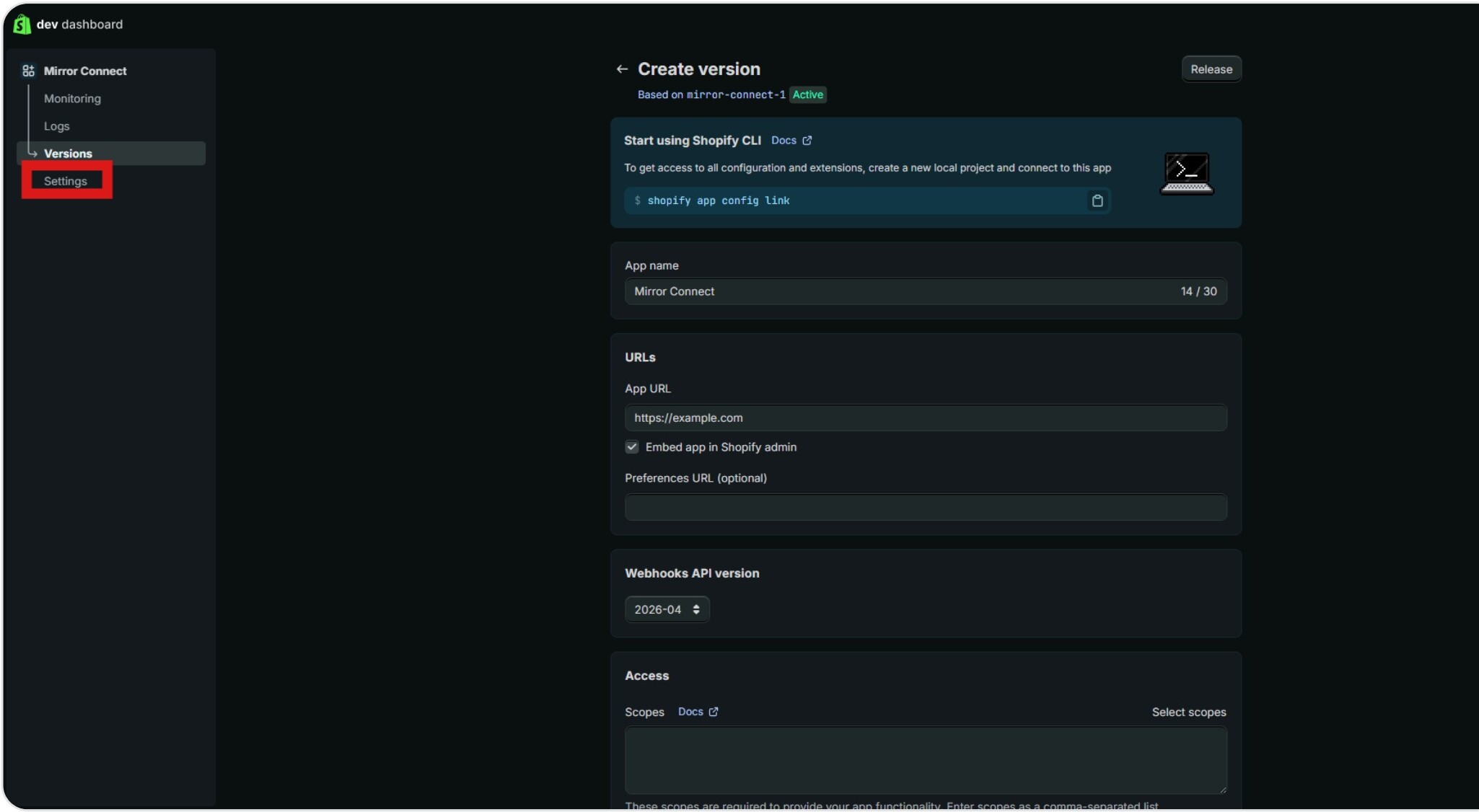
Create a version
Name your app (e.g. Mirror) and create a first version.
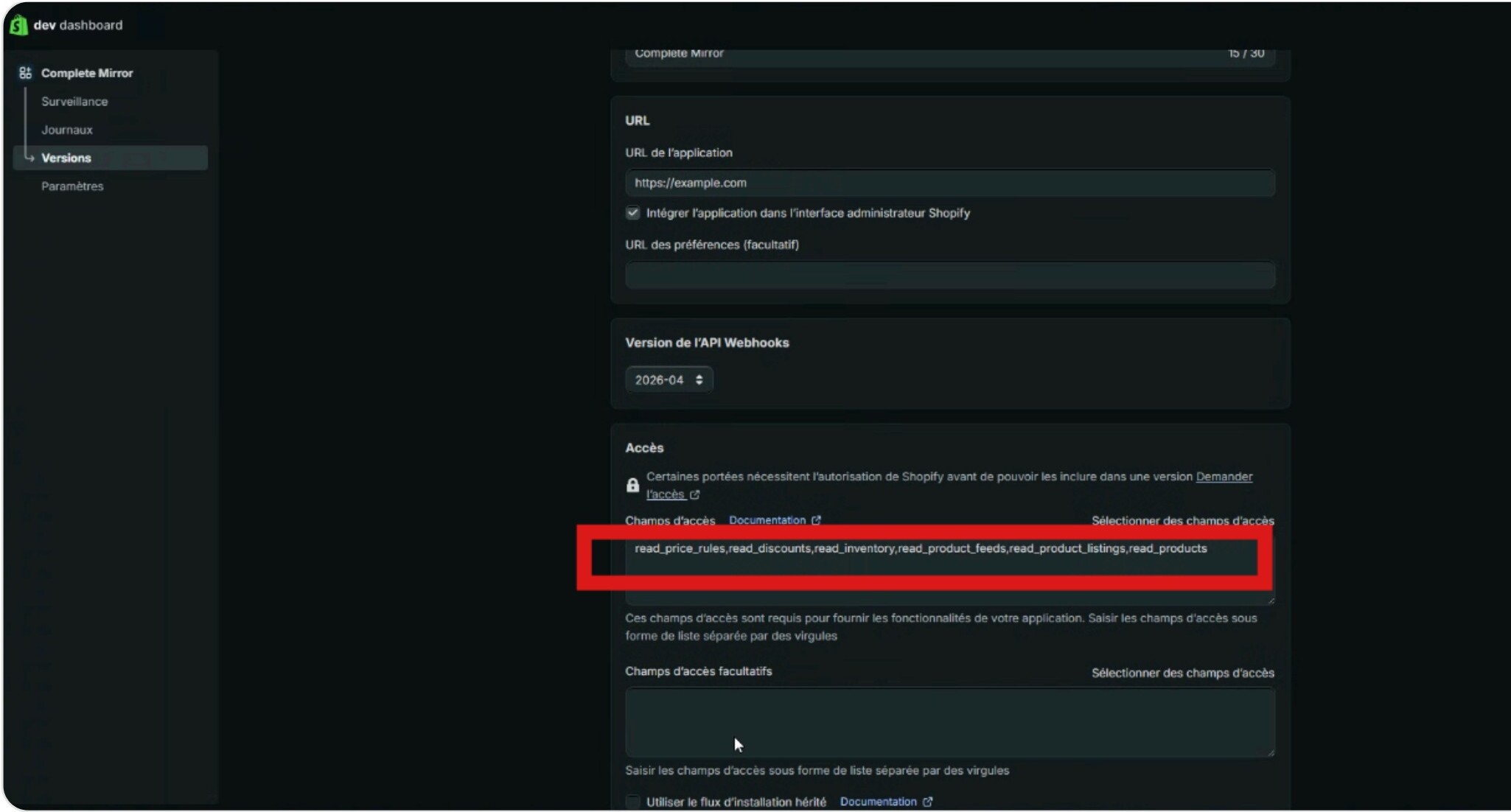
Add the access scopes
In the version you just created, add the access scopes. Search for Price, Inventory, and Product, and tick all read boxes for every result of each of the three searches.
Install the app
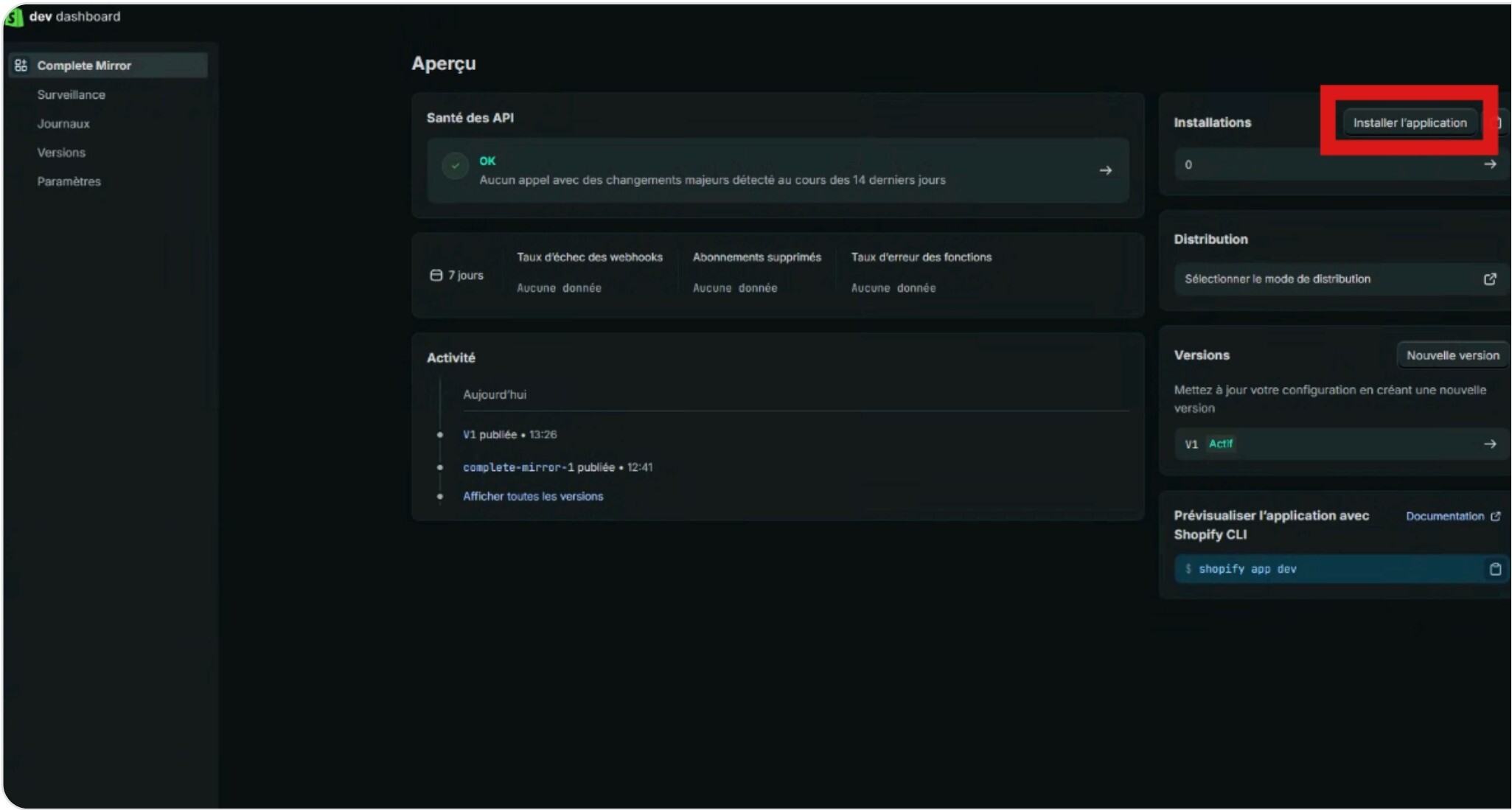
Once the version is saved, click Install app.
Copy your app credentials
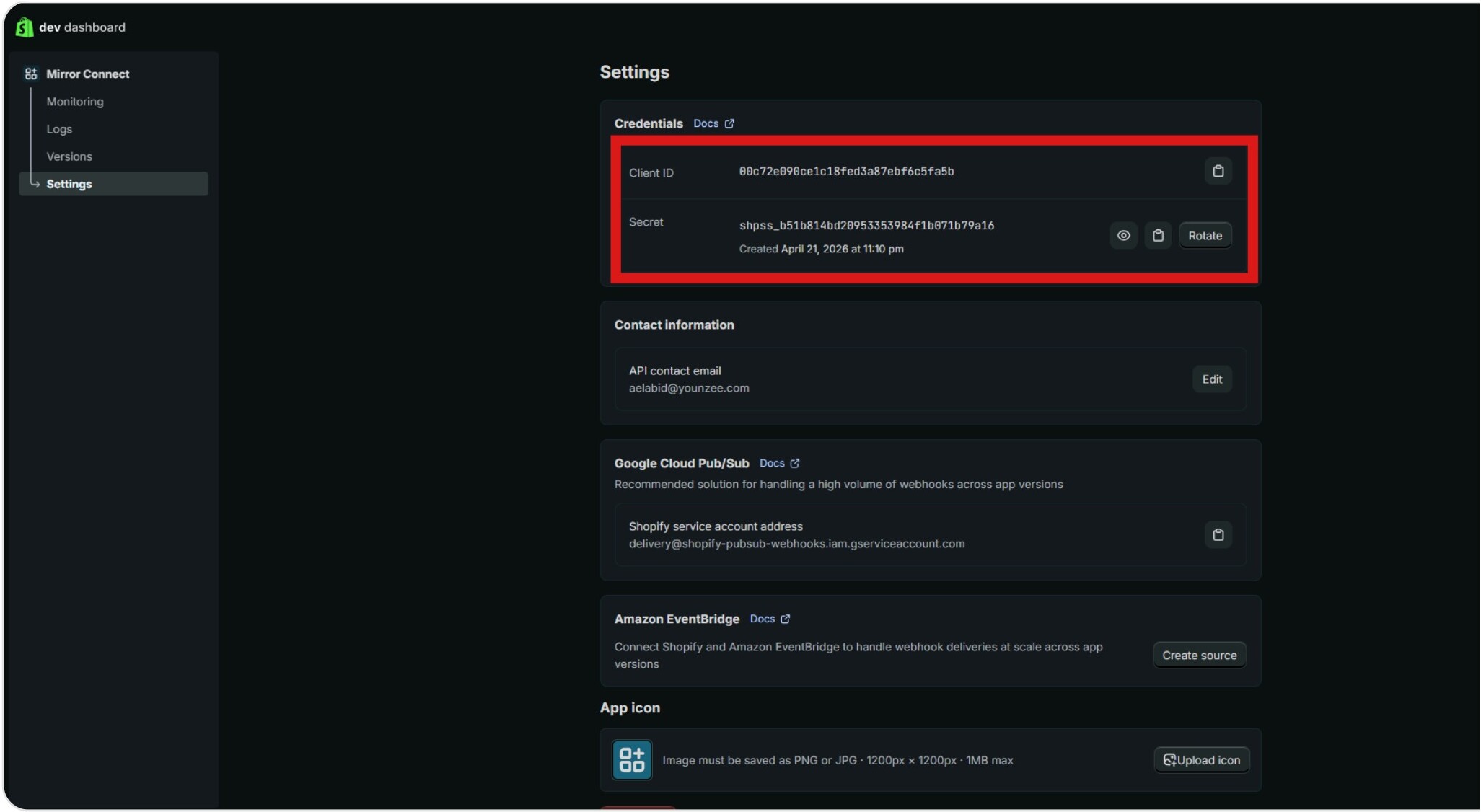
Open the Settings tab of your app and copy both the Client ID and the Client Secret. Keep them at hand, you will paste them in your Mirror Admin at step 14.
Copy your shop domain
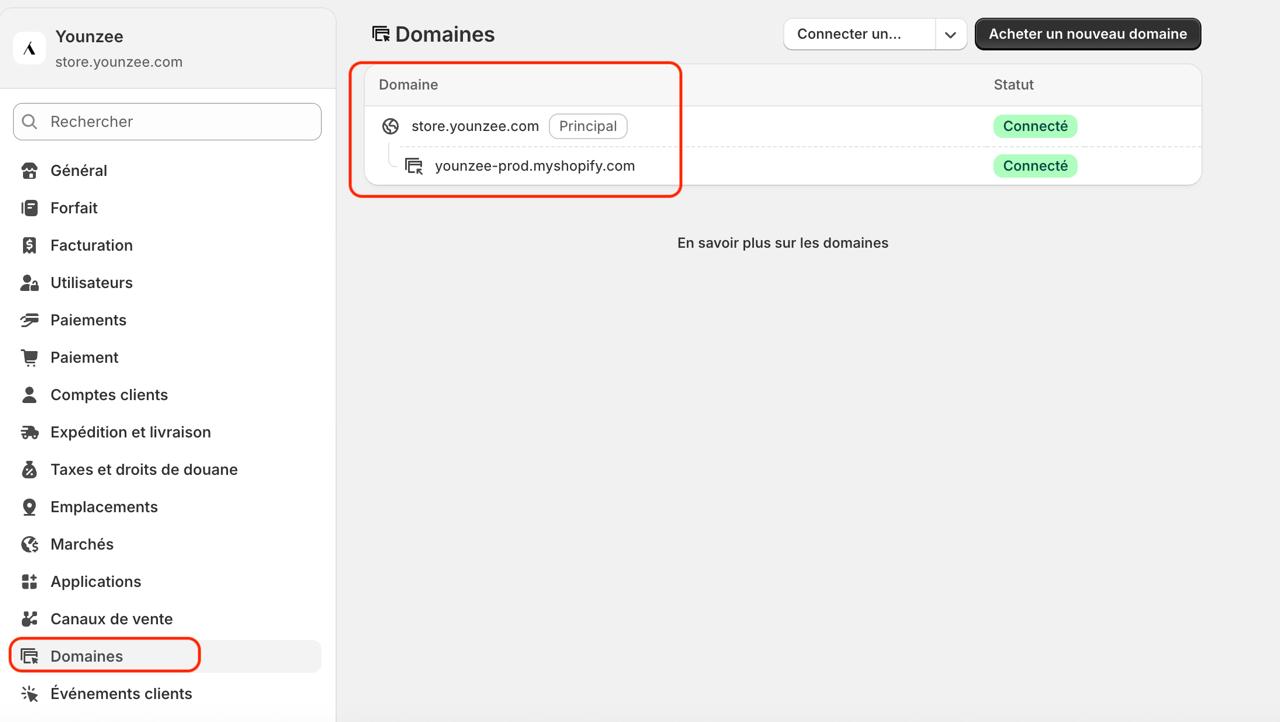
In your Shopify admin, go to Settings → Domains. Copy your .myshopify.com domain (e.g. your-shop.myshopify.com). Keep it for step 14.
Connect in your Mirror Admin
Open your Mirror Admin
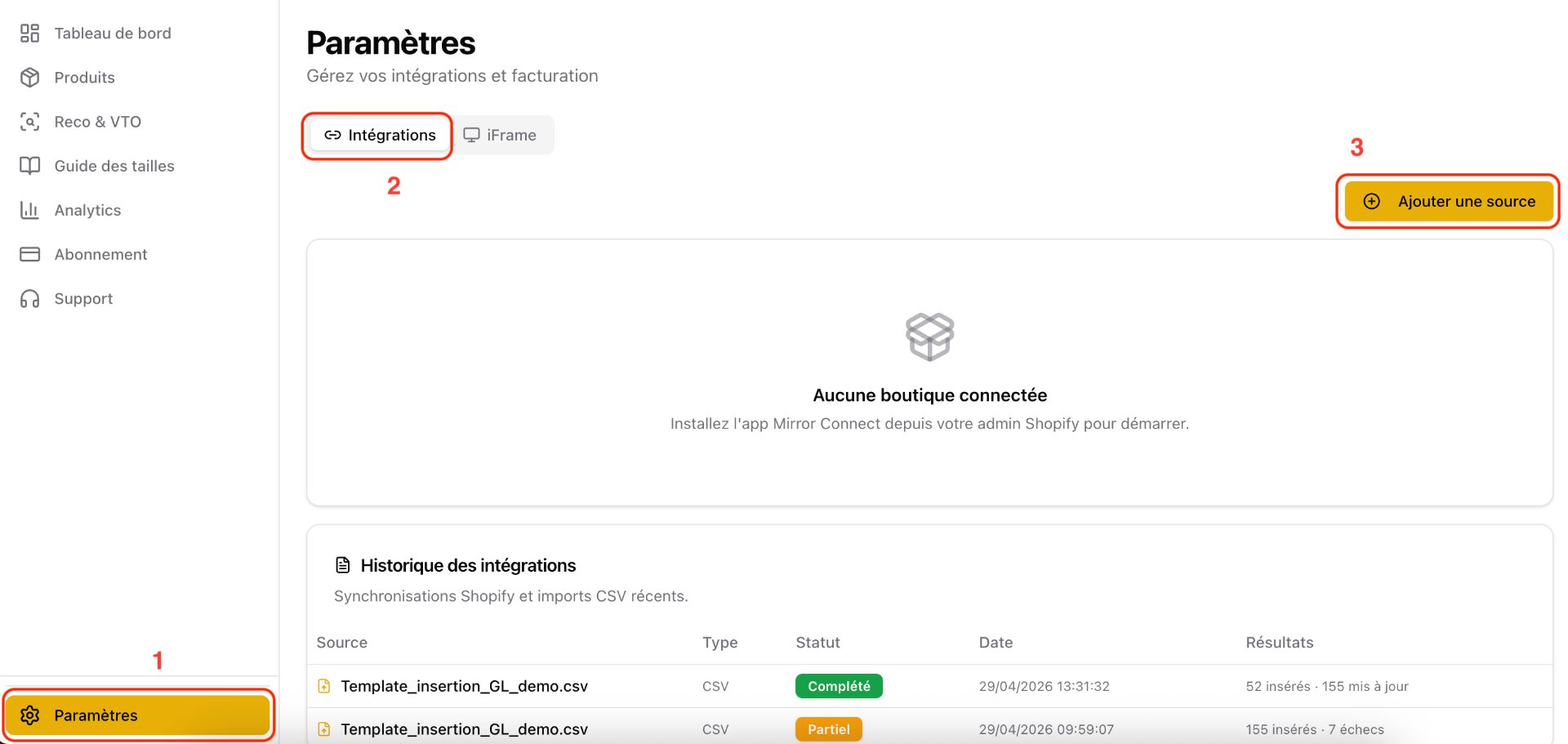
Log into your Mirror Admin space, then go to Settings → Integrations → Add a source.
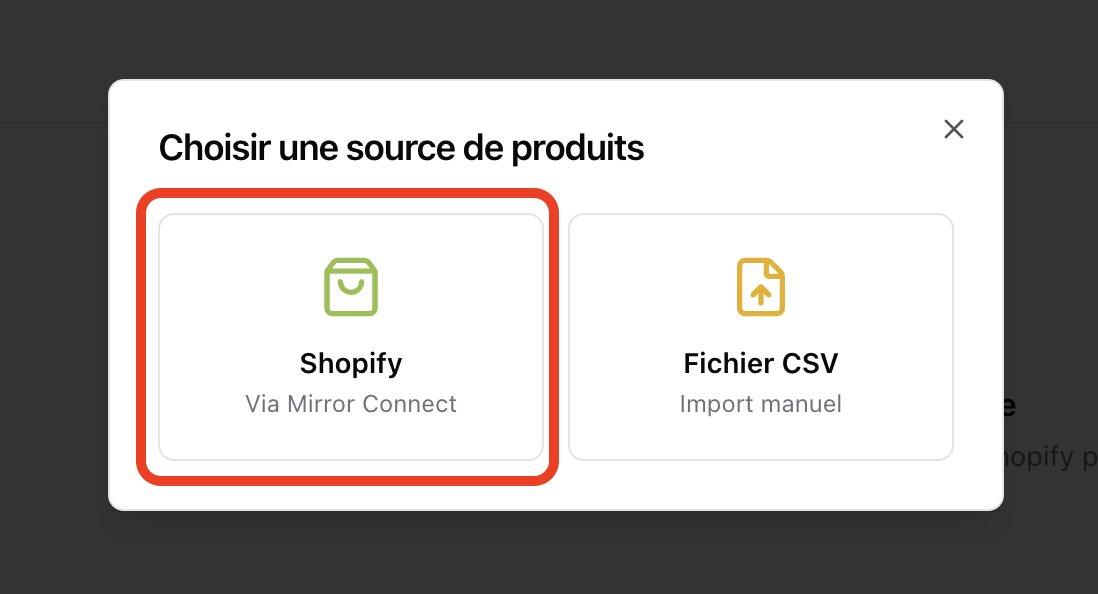
Select Shopify as source
In the source picker, choose Shopify (Via Mirror Connect).
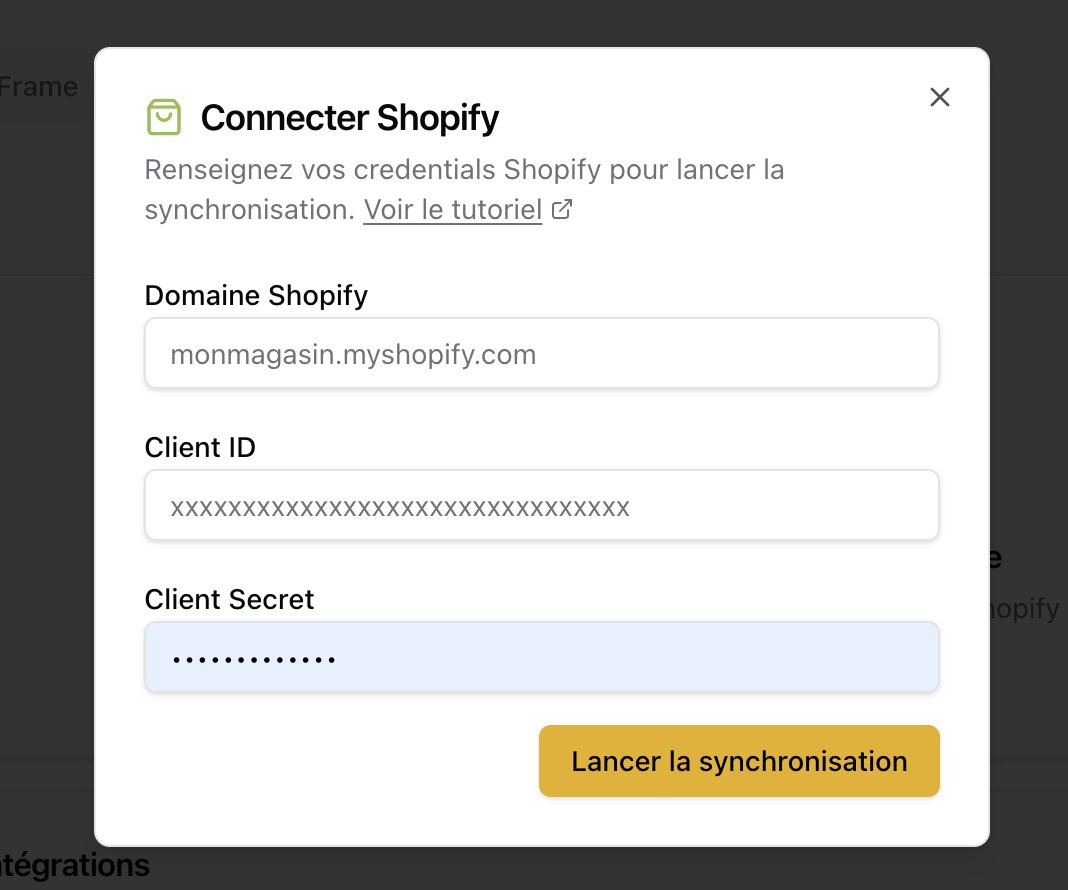
Enter credentials and start sync
Paste your .myshopify.com domain (step 11), the Client ID and the Client Secret (step 10), then click Lancer la synchronisation. The sync usually completes in a few minutes.
Need help?
Reach out to your Mirror contact or open a ticket on your Mirror admin interface.
Next guideEmbed the Mirror iframe
Add the virtual try-on iframe to your Shopify product page in minutes.
Read guide